

Transcribe x n8n: Integration Guide

Automate transcription workflows with Transcribe and n8n
Looking to automate your transcription workflow? By connecting Transcribe with n8n, you can automatically convert audio and video files into text and pass the results to databases, AI models, messaging platforms, CRMs, and other downstream systems.
The n8n-nodes-transcribe-com community node provides a simple way to integrate Transcribe.com with n8n, making it easy to build transcription workflows without complex code.
Features
Why choose the Transcribe.com integration for your n8n workflows?
-
Automated transcription workflows – Process audio and video files directly within your existing n8n automations.
-
Fast and accurate transcription – Convert recordings into searchable text in seconds.
-
Simple authentication – Connect your Transcribe account using a unique invite code.
-
Easy to extend – Combine transcription with AI, databases, notifications, document management systems, and more.
-
Free to get started – New Transcribe accounts include free transcription credits for testing and development.
Installation guide
The Transcribe.com node is available as a community node in n8n, and you will need to install it via the n8n settings panel.
Prerequisites
- n8n version 2.4.6 or later
Steps
1. Install the node
-
Open your n8n dashboard
-
Navigate to Settings > Community Nodes
-
Click Install
2. Enter the package name:
- n8n-nodes-transcribe-com
3. Review and accept the community node disclaimer
4. Click Install
Once installation is complete, the Transcribe node will be available in the node library and can be added to any workflow.
Authentication
Before using the node, you'll need to connect your Transcribe.com account.
1. Get your invite code
-
Sign in to your Transcribe.com account
-
Open Settings
-
Select Automation
-
Copy your unique invite code


If you don't already have an account, you can create one for free and receive starter transcription credits.
2. Add credentials in n8n
-
Open a Transcribe.com node within your workflow.
-
Under Credentials, select Create New
-
Paste your invite code
-
Save the credential
Your workflow can now authenticate with Transcribe.com.
Using the node
The node's primary operation is converting audio or video files into text.
A typical workflow might look like this:
1. Trigger – Detect a new file from Google Drive, Dropbox, email, a webhook, or another source.
2. Transcribe node – Submit the file for transcription and receive the resulting text.
3. Action – Send the transcript to OpenAI, save it to a database, create a document, post it to Slack, or trigger another workflow.
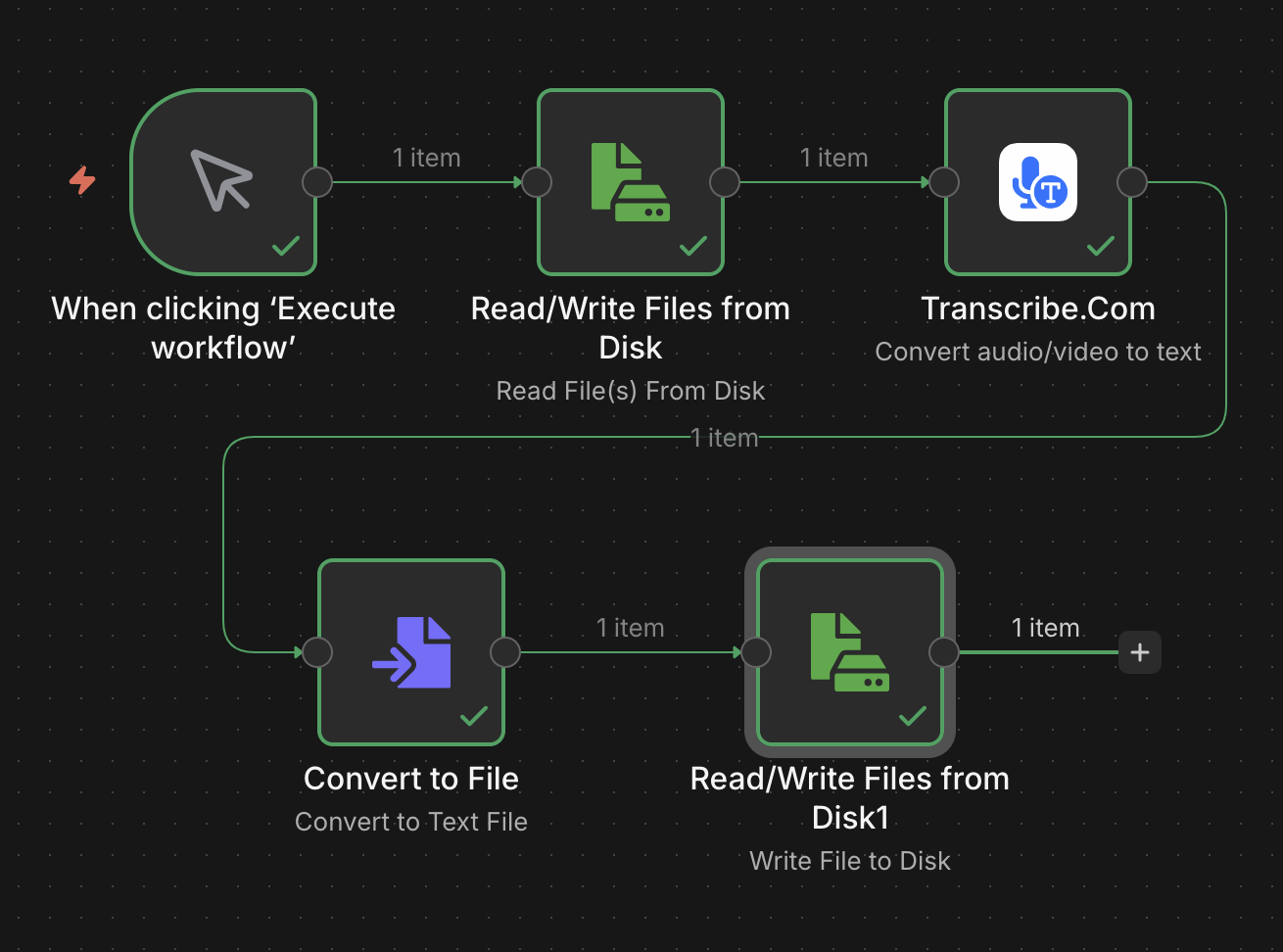
Image source: GitHub
Note: The incoming file must be available as binary data so that n8n can pass it to the Transcribe.com node for processing.
Example use cases
-
Automatically transcribe customer interviews uploaded to cloud storage
-
Convert meeting recordings into AI-generated summaries and action items
-
Process podcast episodes and publish transcripts automatically
-
Create searchable archives of audio and video content
-
Extract text from voice notes and route it to internal systems
Resources & links
-
Source code: GitHub Repository
-
Official service: Transcribe.com
-
n8n documentation: Community Nodes Guide
Ready to automate transcription workflows? Install the Transcribe.com node and start turning audio and video content into structured, actionable data.